Connect Algolia for product search
If you’re constantly updating your product catalog with new products, it’s important to have these changes reflected quickly in your storefront. This is great for your sellers as their products are seen in your storefront once you approve them.
In this guide, you'll learn how to integrate Algolia into your marketplace and storefront.
Traide now has a built-in Algolia integration that keeps your catalog synced, issues search-only keys to your storefront, and reports sync problems with actions to fix them. See Traide's built-in Algolia integration below.
The walkthrough that follows it covers the older third-party app, which is configured with an Algolia write key and syncs variants on a schedule. If your marketplace is already running that app it continues to work; if you are setting Algolia up for the first time, speak to your Traide representative about which one applies to you.
Traide's built-in Algolia integration
Search is how most buyers find anything in a large multivendor catalog. Traide's built-in integration keeps your catalog synced to Algolia and gives you the tools to tell when it has stopped.
The sync, configuration and monitoring described below are live now. The Algolia-backed storefront search experience — the search box your buyers use, and the merchandising that goes with it — is being rolled out separately. Your Traide representative will confirm timing for your marketplace.
Search keys your storefront can safely use
Your storefront needs to query Algolia from the browser, which means it needs a key. Traide issues a secured, search-only key through your shop's search configuration, scoped to your marketplace.
That distinction matters: a search-only key can read your index but cannot write to it. A write key shipped to a browser can be read by anyone who views the page and used to modify or delete your index.
The search configuration is read by your storefront rather than configured by hand in the dashboard. If you are building your own storefront, see the developer guide.
Sync problems
Indexing runs in the background. Without a way to see it, the first sign that your catalog has stopped syncing is usually a shopper reporting stale results.
Marketplace operators see a Sync problems section on the app's settings page in Settings -> Apps. Each row states what failed, which object it affected, when, and what to do about it.
An empty list means no problems were reported. If the list cannot be loaded at all, that is shown distinctly — "we could not check" is not the same as "everything is fine".
Sync problems and the maintenance actions below are visible to marketplace operators. Sellers do not see them.
Maintenance actions
Three actions are available on the same settings page:
-
Verify credentials — confirms your Algolia credentials work.
This checks the credentials that are saved, not what is currently typed into the form. If you have just pasted a new key, save it first; otherwise you get a confident answer about the previous key.
-
Push settings — sends Traide's index configuration to Algolia. Use this after changing which attributes are searchable or facetable.
-
Reindex all — rebuilds the entire product index from scratch. Use it when the index has drifted far enough that repairing individual records isn't practical.
Reindexing is billedA full reindex runs in the background and counts against your Algolia operation quota. The dashboard asks you to confirm before starting one. Repeated clicks are prevented while a reindex is in flight, but it is still worth being deliberate — reindexing a large catalog is not a free retry.
The third-party Algolia app
This is the older integration, configured with an Algolia write key. It syncs product variant information on a schedule.
Requirements
When you’re integrating Algolia, you’ll need the following:
- A Traide account. Traide is a marketplace commerce platform that enables businesses to build and scale online marketplaces.
- An Algolia account. Algolia powers and scales real-time search for apps and websites.
- An operational marketplace or store in Traide. You can learn more about setting this up via the Traide help guide.
Setting up Algolia
Once you’ve signed up with Traide and have a marketplace, you can view all integrated apps or plugins in the App marketplace section. In the dashboard, navigate to Settings -> Apps -> App marketplace. You should have a view similar to the following image:
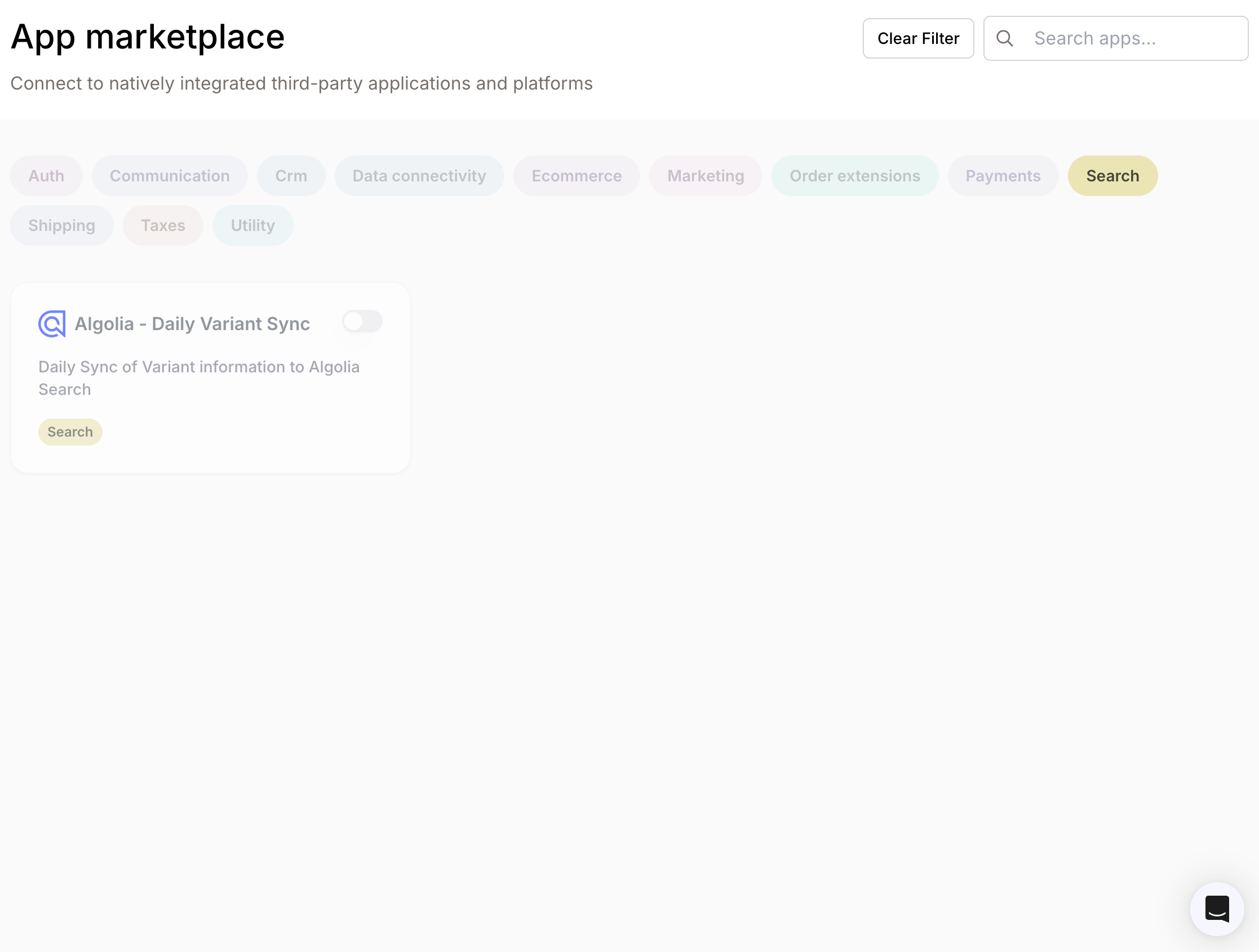
The core setup of integrating apps and plugins into your app marketplace is done by a Traide representative. If the Algolia third-party app is not present, reach out to your representative about enabling it.
The Algolia third-party app in the image above syncs product variant information daily. You can activate it via the following steps:
- In the app marketplace, select the Algolia third-party app.
- Select Reconfigure, then select Next.
- Input the following information:
- Your Algolia Write API key.
- Your Algolia Application ID. You can learn more about this here.
- Your Algolia index name. This is the name your index will be saved as in your Algolia dashboard.
- Your Traide tenant type. This is the environment you’re building for, values can either be Staging or Production.
- Your Traide tenant ID. This is your store’s name, you can also confirm this from your marketplace’s dashboard URL - https://[tenantid].mpconsole.com.
- Your Bearer Token. This is an API token generated as part of integrating a third party app to your marketplace. You can create one in the dashboard by navigating to Settings -> Apps -> Custom Apps.
The video below shows how you can generate a Bearer Token when integrating an app:
The Bearer Token displayed here is only for informative purposes. You should always keep your tokens private.
After generating your Bearer Token, navigate to Settings -> Apps -> App marketplace in the dashboard and input the details you need to activate Algolia. The following image shows how your details should appear:
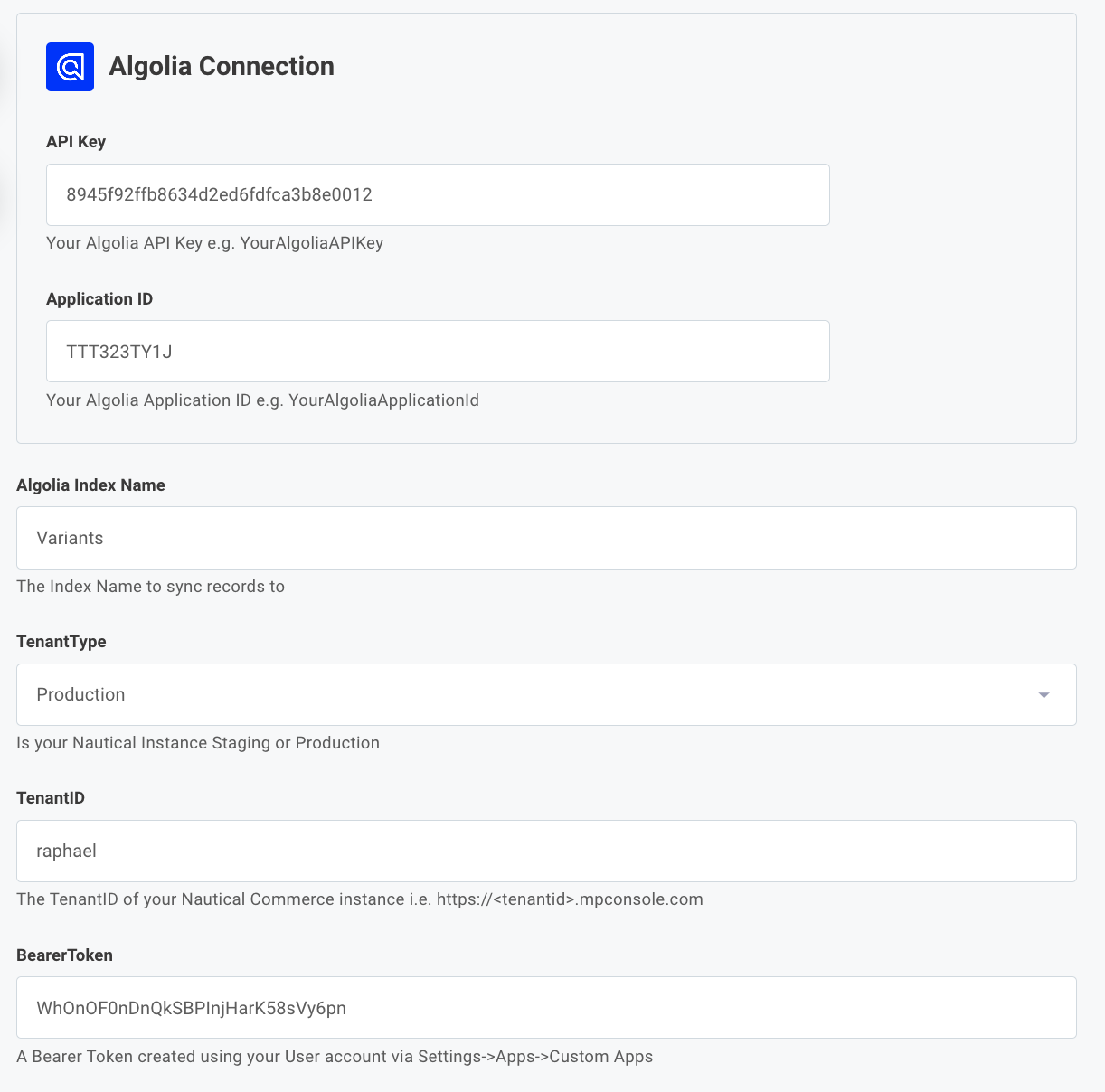
The keys and tokens displayed here are only for informative purposes. You should always keep such data private.
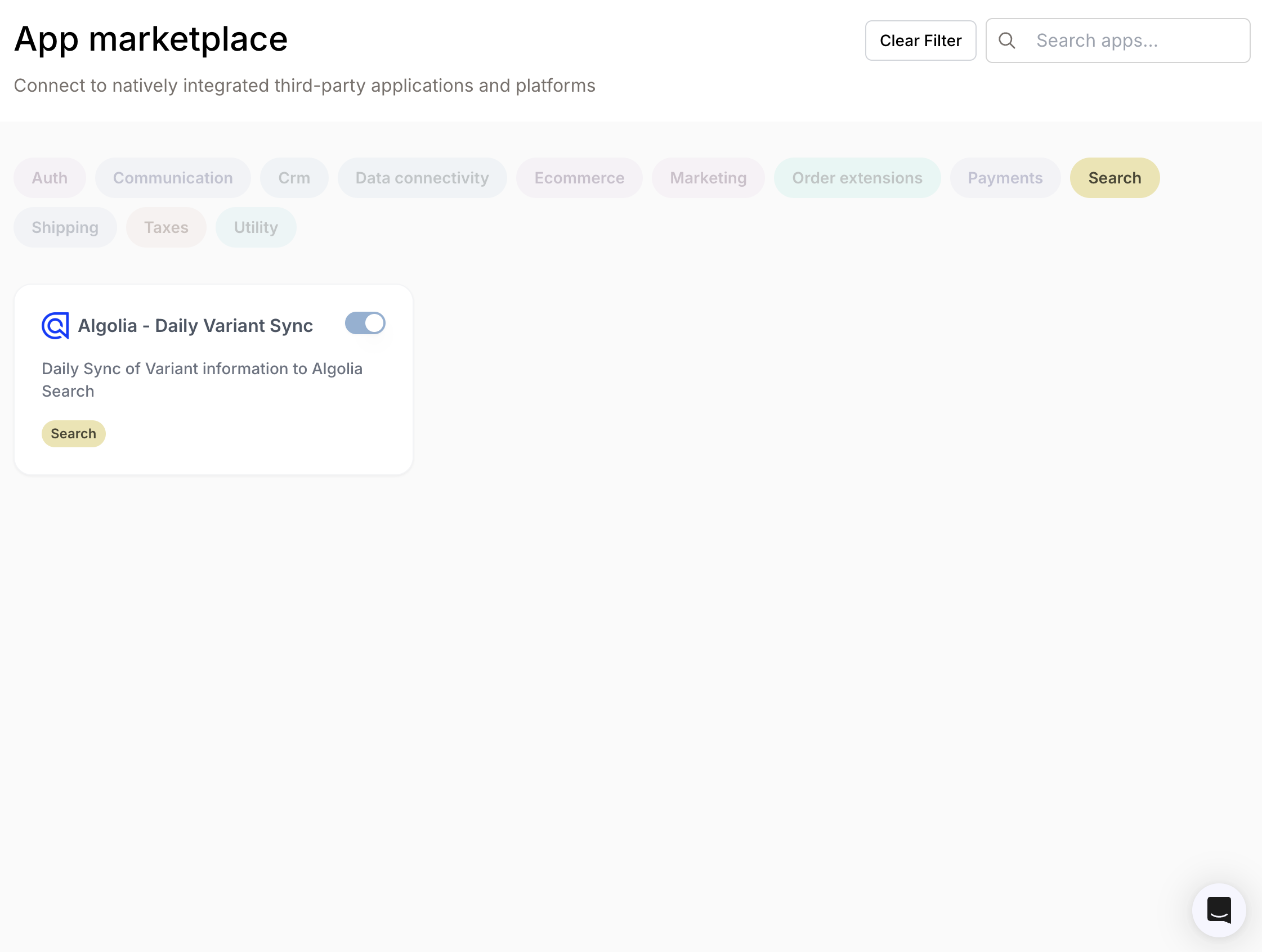
Once you are done, your Algolia app should be active and appear similar to the following image:
Viewing Variant Updates
Your product variants will be synced once the Algolia third-party app is active. You can view them by navigating to Data Sources -> Indices in your Algolia dashboard. The following video shows details of product variants synced to Algolia:
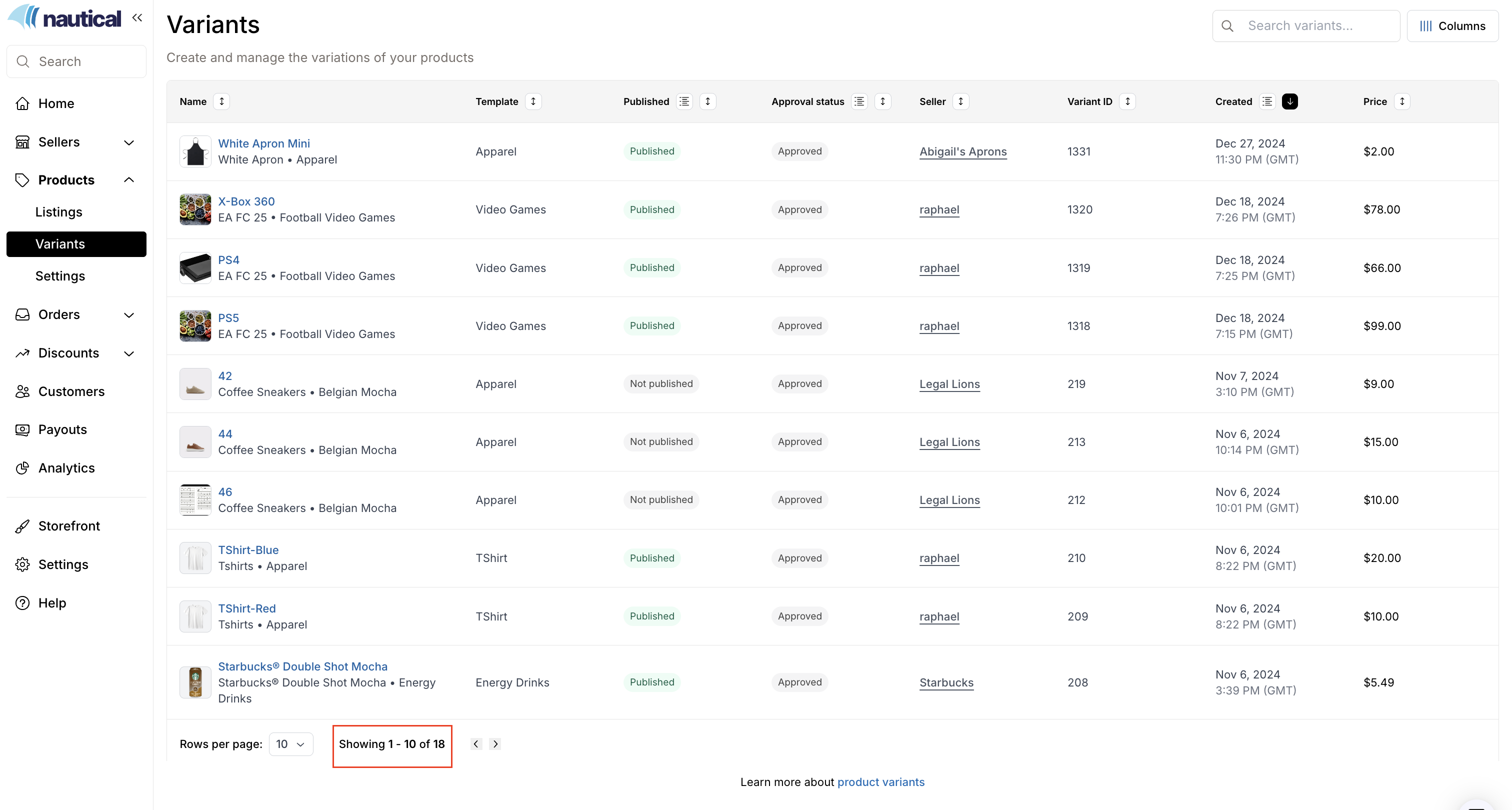
In the above video, the total number of variants synced is 18. The following image shows the marketplace where these variants are synced from.
To test the Algolia app, add a new variant to the marketplace. The following video shows the process of creating a new variant:
color : green price: 15 cost: 6 weight: 0.2 inventory 100 in marketplace
When the Algolia app performs a sync, this variant appears in the Algolia dashboard. The following video shows details of the created variant after it is synced to Algolia:
Summary
Updating product variant details in your storefront as they are shared or changed not only improves your relationship with sellers, it also improves the buyer experience as customers get to access products as soon as they are published. Should you have any questions, reach out via support@thetraide.com.